I said I wasn’t writing any more blog posts…but you lot haven’t bought enough of my books for me to retire yet 😉 Links below! Never let it be said that I don’t miss a chance to promote myself.
Actually in all seriousness this issue jumped out at me recently and I found it pretty odd, so I thought I’d quickly document it as a few other people seemed to have seen it. Although, as Nathan S suggested, Microsoft will probably change everything on the next patch Tuesday and the problem will disappear into a new set of Start Menu changes, so perhaps pointless….we shall see.
What is Category View?
Category View is a new look for the Start Menu on Windows 11 that started rolling out lately and being activated, as far as I can tell, by either May or June patching. It means your Start Menu now gets “sorted” into categories by the OS and generally looks like a dog’s dinner.
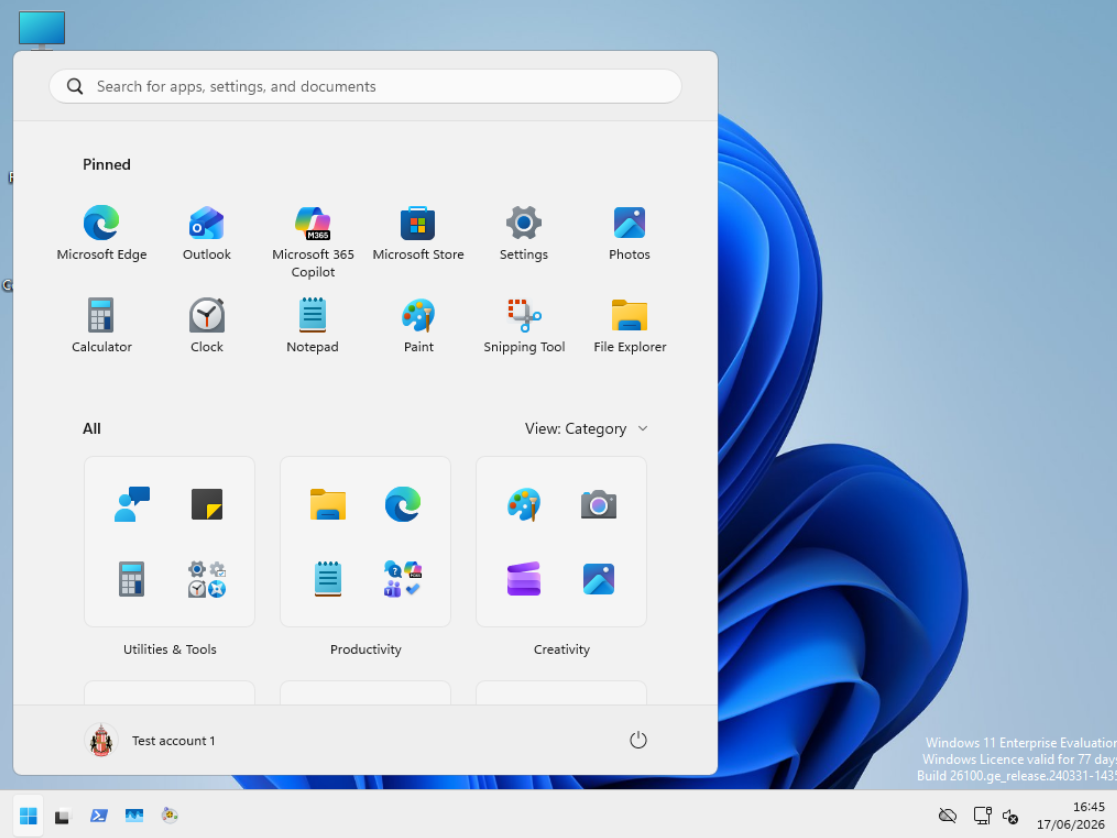
I immediately decided I wanted “List” view back so I changed it, because that gives you the Windows 10-style “one-click and scroll to browse your apps” effect that has been missing from Win11.
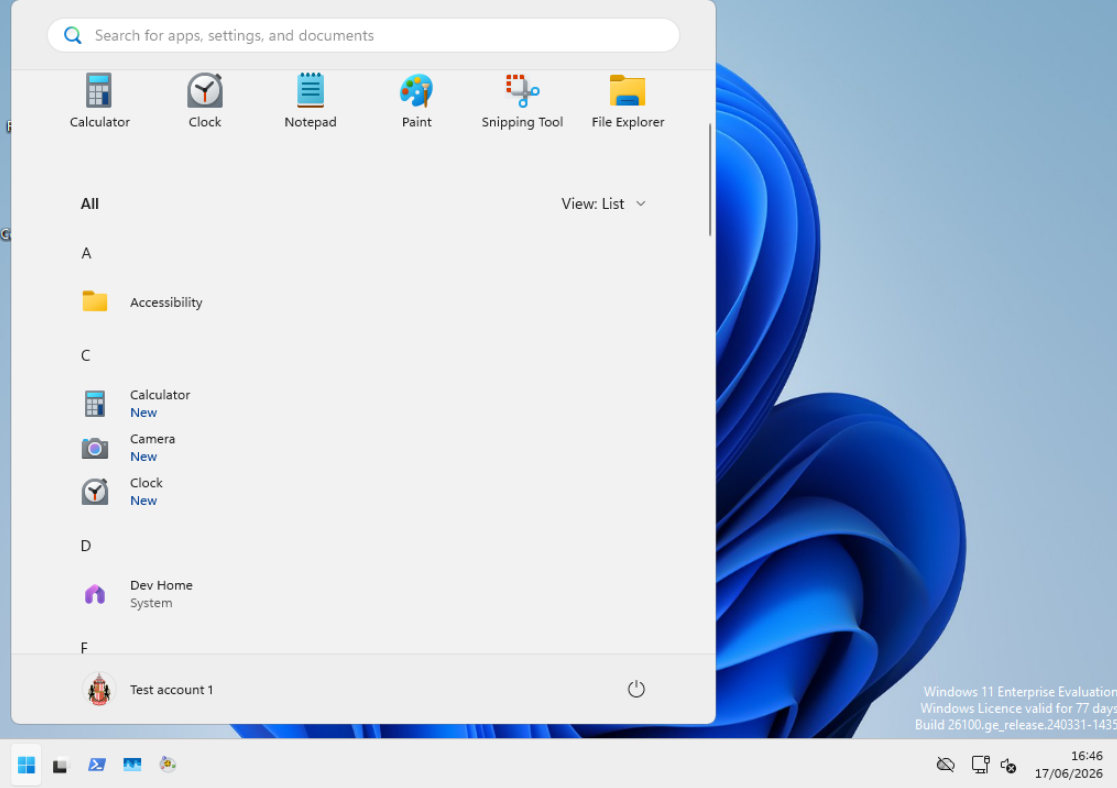
But imagine my shock when it spontaneously changed back during my session. Rather annoying to say the least!
Digging into this, it appears to be related to Group Policy refresh. Running gpupdate /force always seems to reset the Start Menu back to Category View. In my testing, it was normally only the first time it ran after logon that this issue appeared, but it can appear at every instance as well.
Running a Process Monitor reveals that the Registry values in HKCU\Software\Microsoft\Windows\CurrentVersion\Start are being overwritten, not by the GP engine, but by StartMenuExperienceHost.exe. It is these values that control the Start Menu view (specifically AllAppsViewMode), but they are like the shell in that they need to be properly “refreshed” once set, so changing the value back via GPP doesn’t help.
Anyways, after much testing, it would seem that the problem is a combination of the Group Policy refresh, and whether you have any policies configured inside User Configuration | Admin Templates | Start Menu and Taskbar. It is only a subset of these policies that cause the issue, making it even more weird.
Essentially, policies defined in this area write to one of two parts of the Registry, either:-
HKCU\Software\Policies\Microsoft\Windows\Explorer\ or
HKCU\Software\Microsoft\Windows\CurrentVersion\Policies\Explorer\
Any policy object that writes to the first key will exhibit the issue. Any policy object that writes to the second key will not.
Using the last iteration of Microsoft’s GPO spreadsheet I could find, the following policies will cause the issue to show:-
Add Search Internet link to Start Menu
Change Start Menu power button
Clear tile notifications during log on
Disable context menus in the Start Menu
Disable showing balloon notifications as toasts
Do not allow pinning items in Jump Lists
Do not allow pinning programs to the Taskbar
Do not allow pinning Store app to the Taskbar
Do not allow taskbars on more than one display
Do not display or track items in Jump Lists from remote locations
Force Start to be either full screen size or menu size
Go to the desktop instead of Start when signing in
List desktop apps first in the Apps view
Pin Apps to Start when installed
Prevent users from uninstalling applications from Start
Remove “Recently added” list from Start Menu
Remove Downloads link from Start Menu
Remove Homegroup link from Start Menu
Remove Notifications and Action Center
Remove pinned programs from the Taskbar
Remove Recorded TV link from Start Menu
Remove See More Results / Search Everywhere link
Remove the People Bar from the taskbar
Remove Videos link from Start Menu
Search just apps from the Apps view
Show “Run as different user” command on Start
Show Start on the display the user is using when they press the Windows logo key
Show the Apps view automatically when the user goes to Start
Show Windows Store apps on the taskbar
Start Layout
Turn off automatic promotion of notification icons to the taskbar
Turn off feature advertisement balloon notifications
These policies will not cause it to happen:-
Do not allow rearranging toolbars
Hide the notification area
Lock all taskbar settings
Lock the Taskbar
No changing Taskbar and Start Menu Settings
Prevent changes to Taskbar and Start Menu Settings
Remove access to the context menus for the taskbar
Remove Clock from the system notification area
Remove drag-and-drop and context menus on the Start Menu
Remove Help menu from Start Menu
Remove Internet link from Start Menu
Remove Music icon from Start Menu
Remove Network icon from Start Menu
Remove Personal folder from Start Menu
Remove pinned programs list from the Start Menu
Remove Run menu from Start Menu
Remove Search link from Start Menu
Remove User’s Folders from the Start Menu
Remove Videos link from Start Menu (legacy)
Turn off user tracking
Turn off user tracking in Jump Lists
Turn off notification area cleanup
Turn off taskbar thumbnails
So in summary, if you’re using any of the policies specified in the first set, you’ll have to either get rid of them, or put up with this odd bug until it is fixed. The issue is cumulative – anything in the first (bad) set of policies seems to trigger it, regardless of what is configured from the second (good) set.
An interesting addendum to this is that if you have the GPO configured in Computer Config | Admin Templates | System | Group Policy for Configure registry policy processing set to Enabled, this issue will manifest during an ordinary group policy refresh (i.e. standard gpudate.exe), not just gpupdate /force. This may mean it appears much more apparent as this will appear during the user session.
Hopefully Microsoft fix this soon – in the meantime, buy my books! I have a sci-fi due for release in the next few weeks as my third attempt at being a writer…buy some copies and I’ll be sure to keep the odd blog article pinging out too.